

Quick Start
Get from login to your first published Voiceform and first look at results in a few minutes.
1. Log in
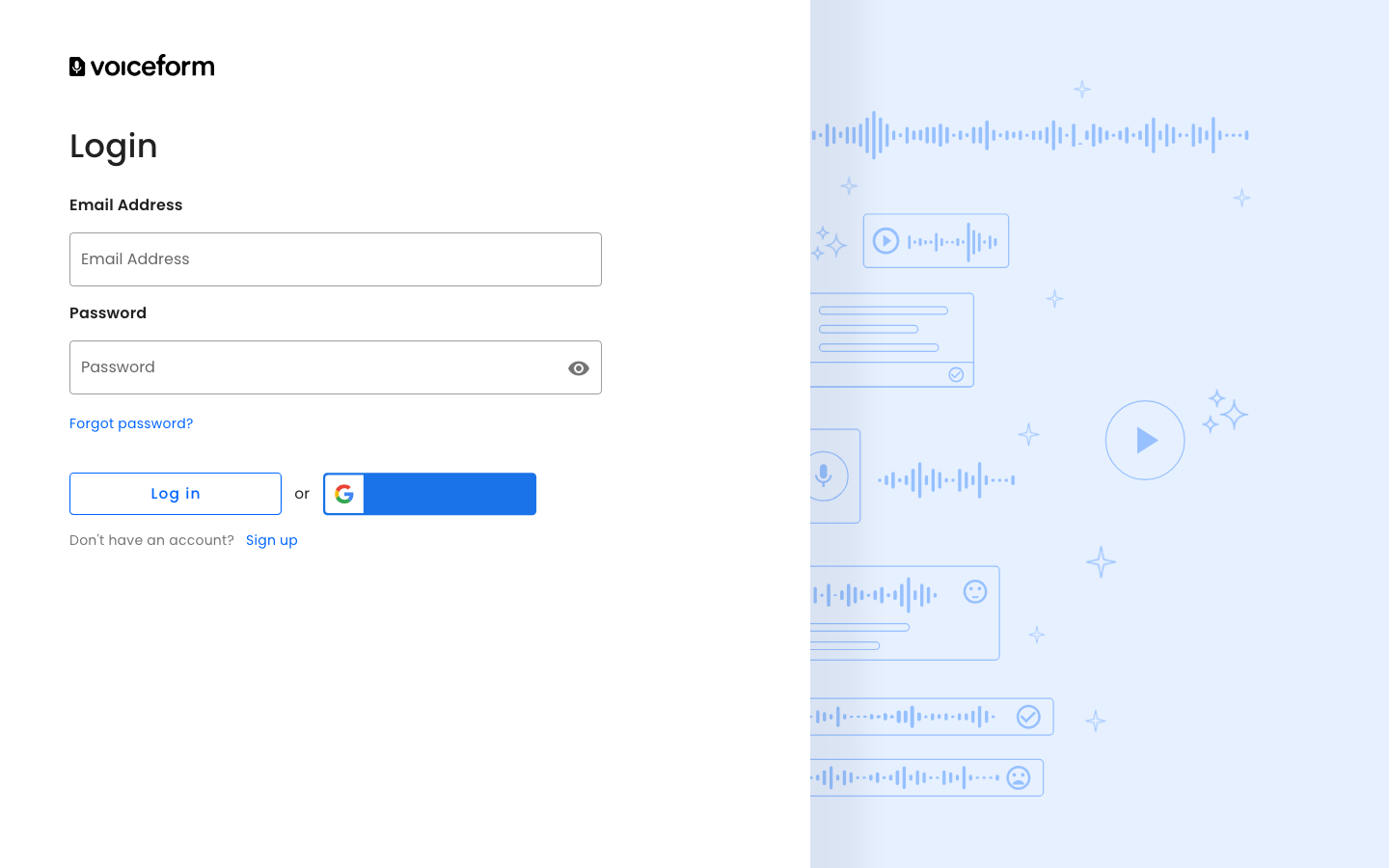
- Go to app.voiceform.com/login.
- Enter your Email Address and Password, then click Log in.
- Or click the Google button to continue with Google.
2. Create a voiceform
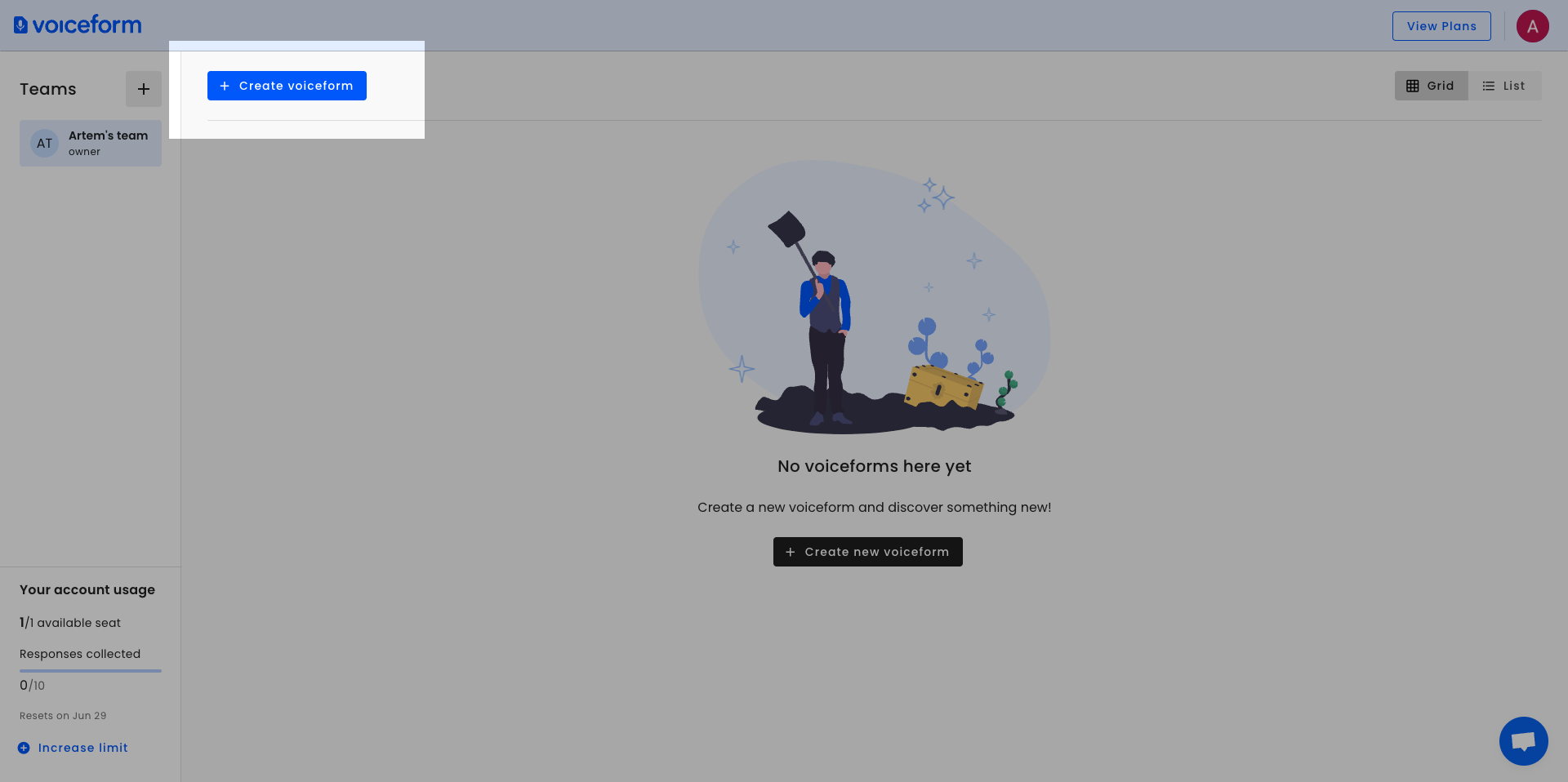
- On the team dashboard, click + Create voiceform (top left of the main area), or + Create new voiceform in the empty state.
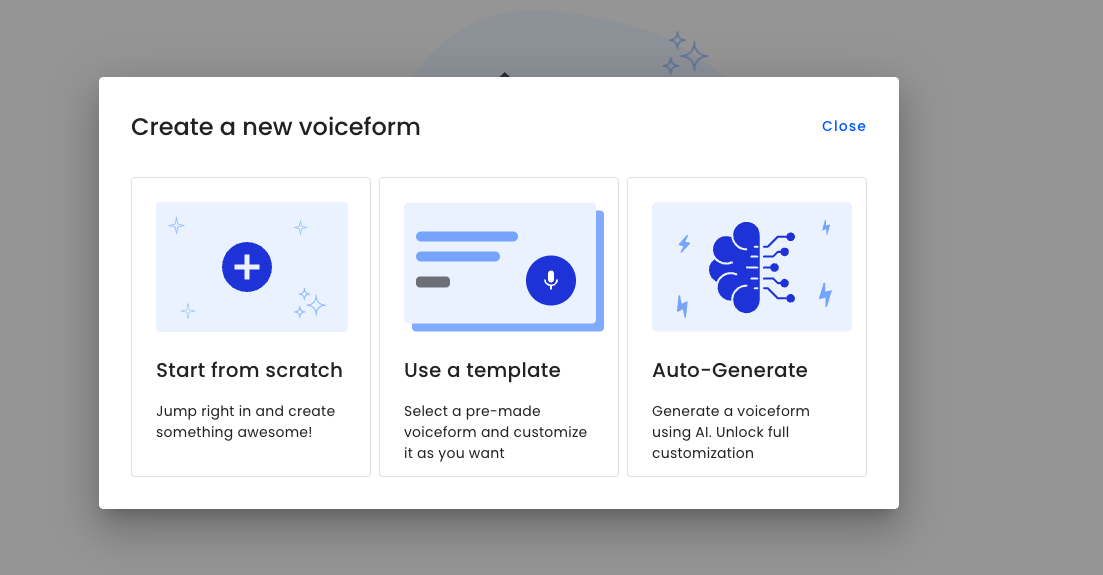
- In the Create a new voiceform dialog, choose one of:
- Start from scratch — blank survey you build yourself
- Use a template — start from a premade survey
- Auto-Generate — generate a survey with AI
- If you chose Start from scratch, enter a form name, pick a survey type, then click Create form.
Survey type matters
Choose the correct survey type — it affects how Voiceform processes and analyzes submissions.
For more detail, see Creating a survey.
3. Add a question
- In the builder, open the Create tab (form header).
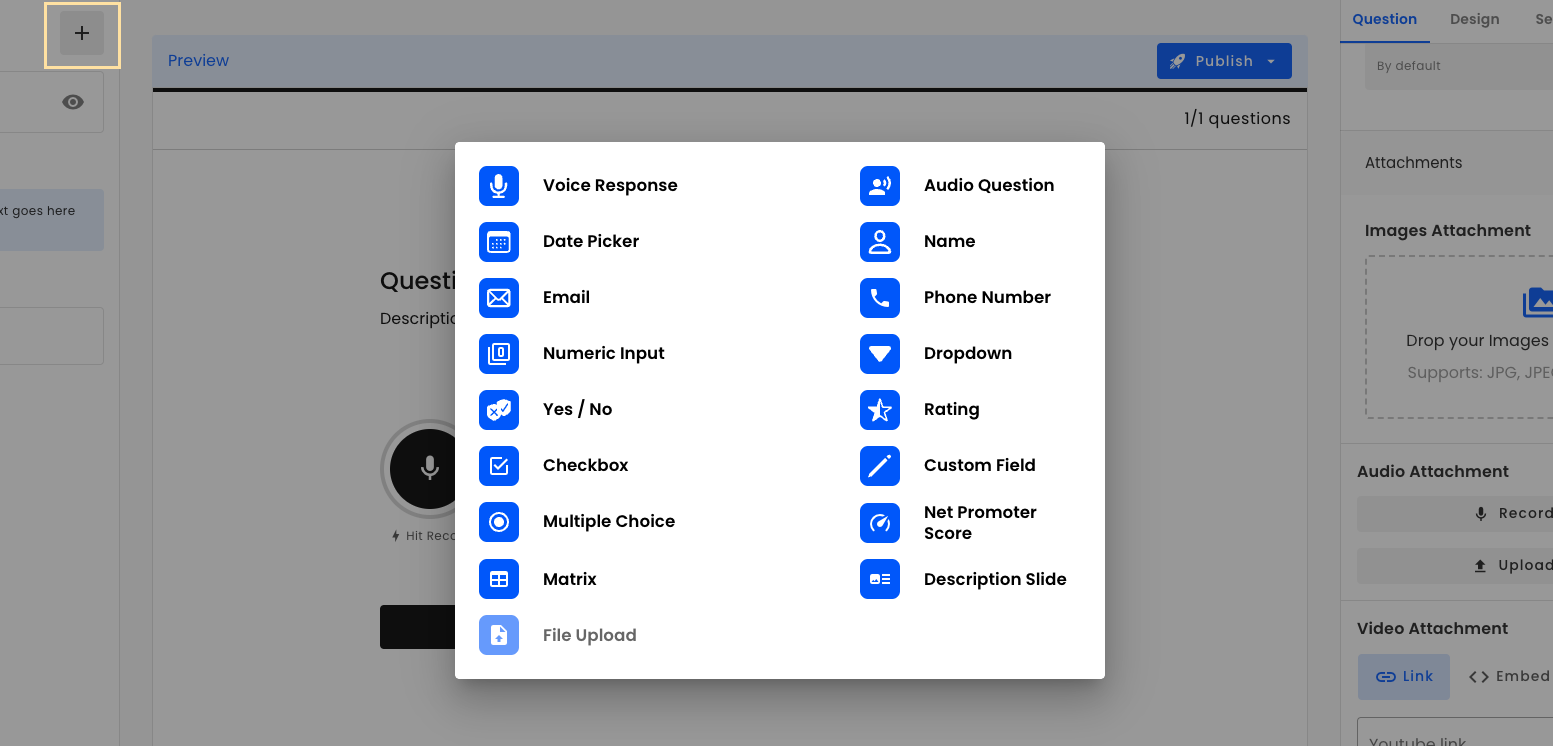
- In the left Content drawer, click + to open question types.
- Pick a type (for example Voice Response, Yes / No, or Multiple Choice).
- Edit the question title and options in the right Question panel.
See Questions for all question types.
4. Publish
- In the preview bar, click Publish (or Re-publish if it was published before).
- In the menu, click Publish Survey / Re-publish Survey.
- Wait for the success message. Optionally open View published survey.
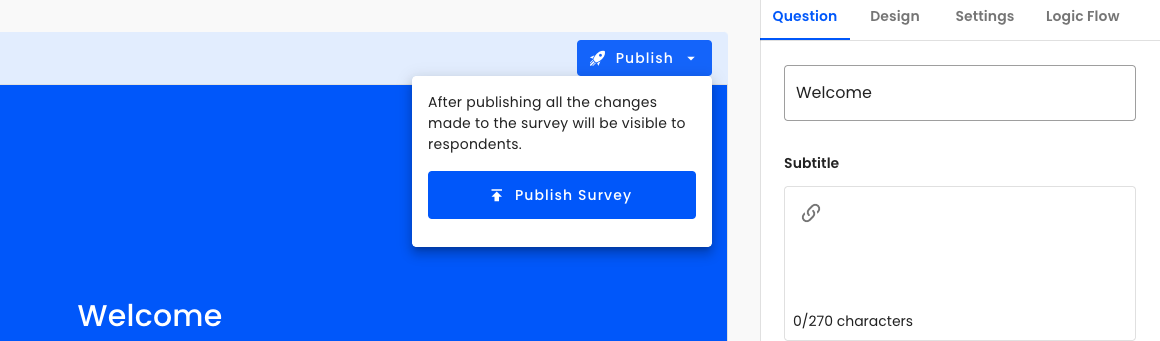
See also Publishing Survey.
5. Share and collect responses
- Open the Share tab in the form header.
- Copy the survey link, or embed the survey where needed.
See How to Share and Embed a Voiceform.
6. View results
- Open the Results tab in the form header.
- Start on Insights for overview metrics, then use By question, By submission, or Exports as needed.