

Goodbye Page
Customize the closing screen respondents see after they submit your voiceform.
Open the Goodbye page
- Open your survey on the Create tab.
- In the questions list, select Goodbye Message.
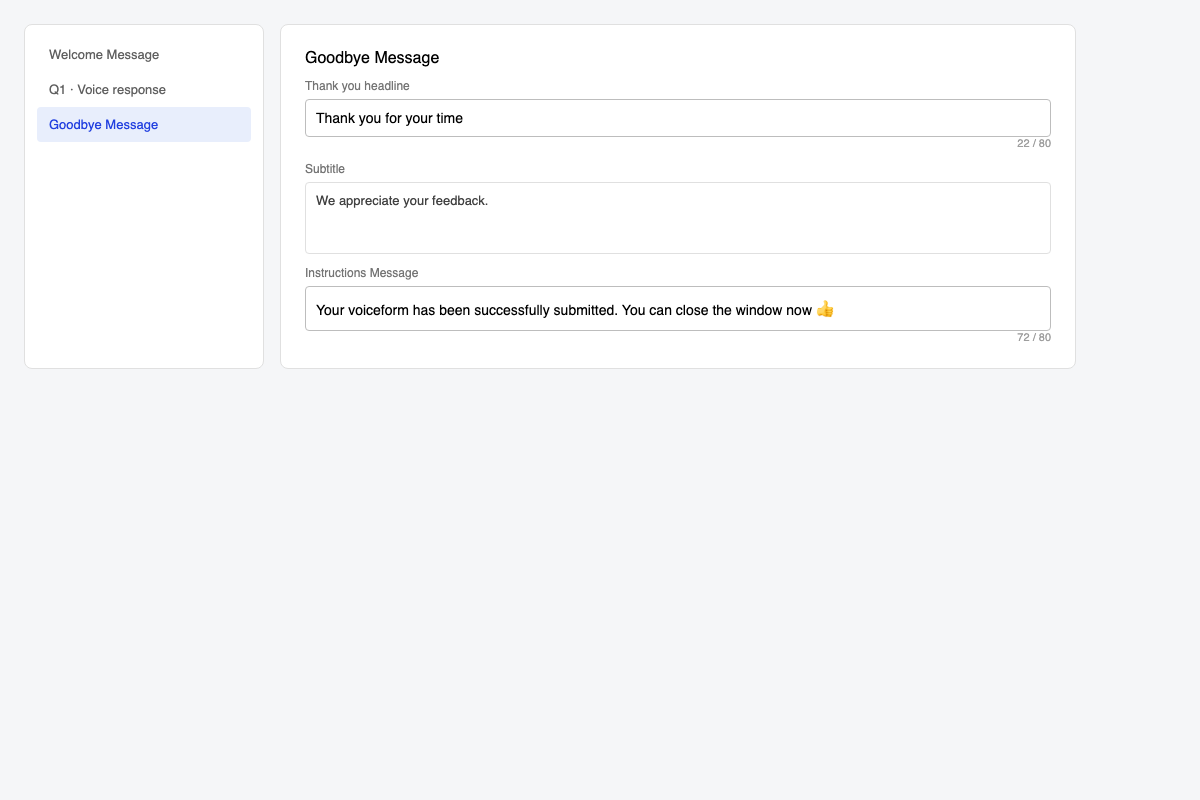
What you can edit
| Field | What it does |
|---|---|
| Thank you headline | Main closing message (max 80 characters). Placeholder example: Thank you for your time |
| Subtitle | Rich text under the headline |
| Instructions Message | Short note after submission (max 80 characters). Default: Your voiceform has been successfully submitted. You can close the window now |
Clear Instructions Message if you do not want that line shown.
Preview and publish
Preview the goodbye screen, then Publish / Re-publish so the live survey uses your updates.
Related
- Welcome Page — opening screen
- Publishing Survey
Updated 3 months ago
Did this page help you?