

How to Create Team and Invite Members
Organize workspaces with teams, then invite collaborators from Team settings.
Create a team
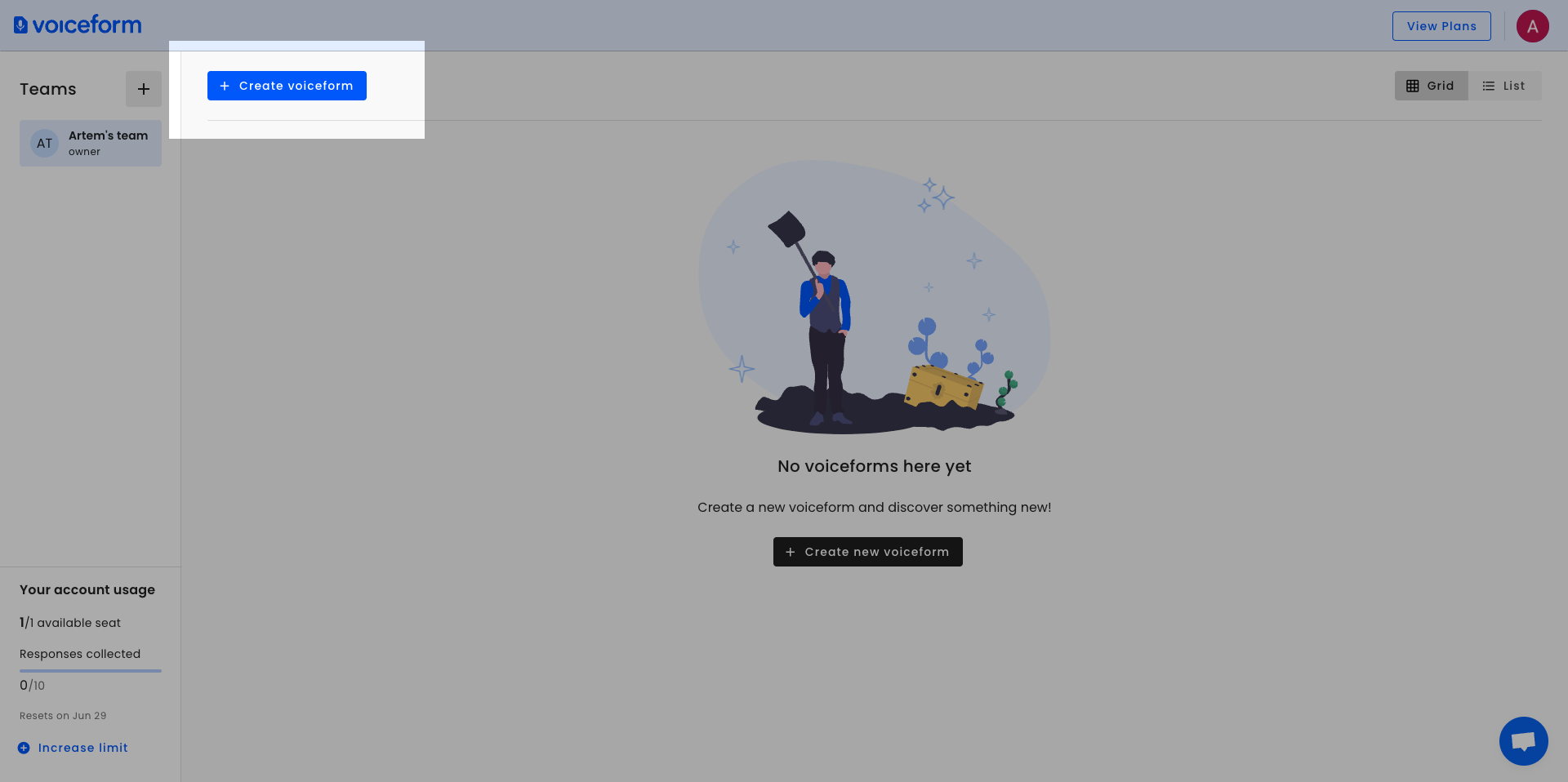
- On the home dashboard, find the Teams section in the left sidebar.
- Click the + icon next to Teams.
- In the Create a new team! dialog:
- Enter a Team name
- Optionally add a Team description and icon
- Click Create team.
Open Team settings
- In the Teams list, hover the team card.
- Click the cog icon to open Team settings.
Update team info
- In Team settings, open Team Info.
- Click Edit (owners and admins).
- Update the name, description, or icon, then save with Update Team Info.
Invite members
- In Team settings, find the Members section.
- Click Invite Members.
Role note
The Invite Members button is not shown for users with the member role. Owners and admins can invite.
- In Invite team members, enter one or more email addresses in Enter email addresses.
- Click Invite N Team Members (the label reflects how many emails you added).
- Invitees receive an email to join the team.
Manage members
From each member’s ⋮ menu you can:
- Resend invitation (pending invites)
- Switch role to Admin or Switch role to Member
- Remove member
Leave or delete a team
At the bottom of Team settings:
- Owners can Remove Team / delete the team
- Other roles can Leave Team
Updated 2 months ago
Did this page help you?