

Welcome Page
Customize the first screen respondents see when they open your voiceform.
Open the Welcome page
- Open your survey on the Create tab.
- In the questions list, select Welcome Message.
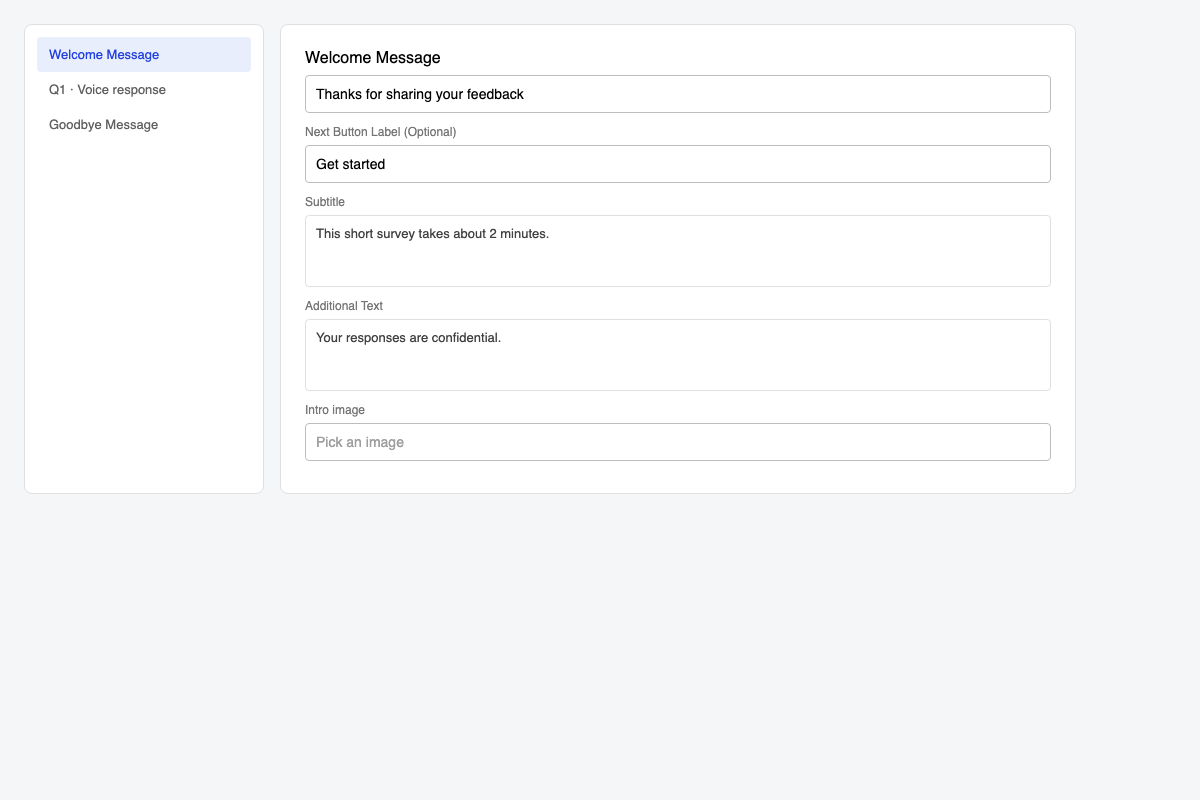
You can hide the welcome screen with the eye icon next to Welcome Message. When hidden, respondents go straight to the first question.
What you can edit
| Field | What it does |
|---|---|
| Title | Main headline at the top of the welcome screen |
| Next Button Label (Optional) | Text on the start button (leave empty for the default) |
| Subtitle | Rich text under the title |
| Additional Text | Optional extra text above the start button (for example a privacy note) |
| Intro image / Welcome Image | Optional image (PNG, JPEG, BMP, or GIF) |
Changes save as you edit.
Preview and publish
Use the form preview to check the welcome screen, then Publish / Re-publish so respondents see the latest version.
Related
- Goodbye Page — closing screen after submit
- Publishing Survey — make changes live
- Design — colors, fonts, and layout
Updated 3 months ago
Did this page help you?