

How to update settings
Configure survey behavior from the builder Settings tab: form type, languages, UI components, notifications, and audio recording.
Open survey settings
- Open your survey in the builder (Create tab).
- In the right-hand panel, click Settings.
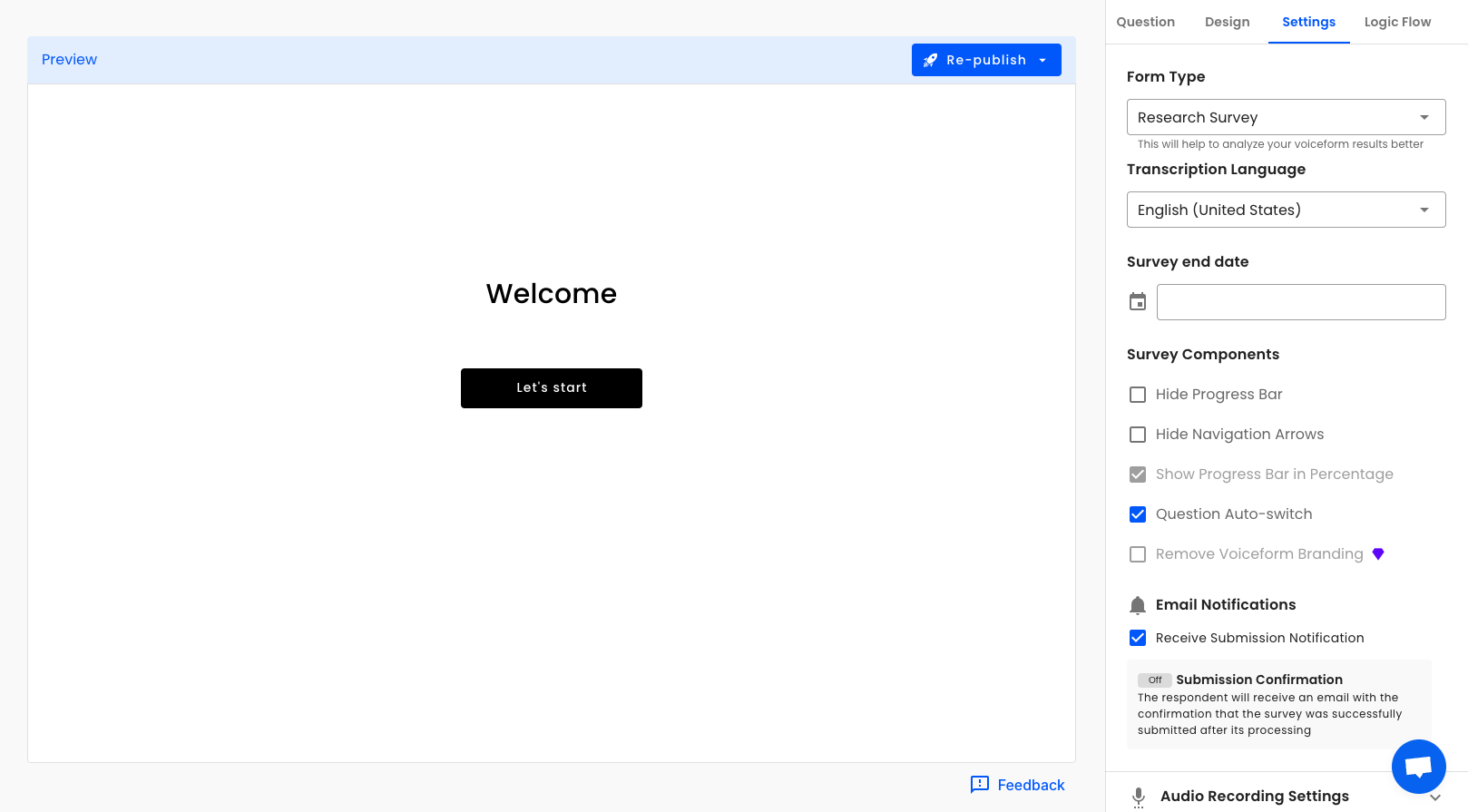
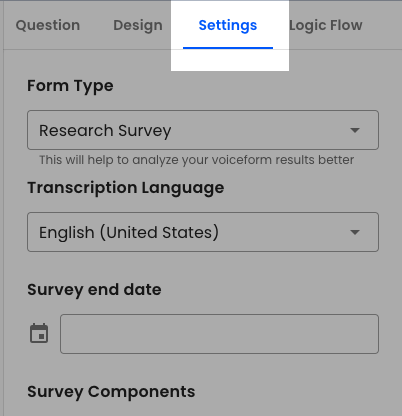
Changes in Settings save as you edit. Some options apply without re-publishing; others (especially respondent-facing UI) apply after you Publish / Re-publish.
Form Type
- Under Form Type, choose the use case that best matches your survey (for example Research Survey).
- If you choose Other, briefly describe the use case.
Why this matters
Form type helps Voiceform analyze results correctly.
Languages & Transcription
- Set Original Language for transcription.
- If available on your plan, add Additional Languages for AI survey translation.
- Optionally enable Translate response to English for non-English answers.
- Optionally enable Normalize Transcript (Beta) to clean grammar and filler words in transcripts.
Survey End Date
Use Survey End Date to pick when the survey should stop accepting responses (times are in your local timezone). Clear the field to remove the end date.
Survey Components
Toggle respondent UI options:
- Hide Progress Bar
- Hide Language Selector (when multilingual is enabled)
- Hide Navigation Arrows
- Show Progress Bar in Percentage
- Question Auto-switch
- Remove Voiceform Branding (paid)
Submission Controls
Enable Prevent Resubmission to block duplicate submissions (uses response_id from the URL when present, otherwise IP).
Email Notifications
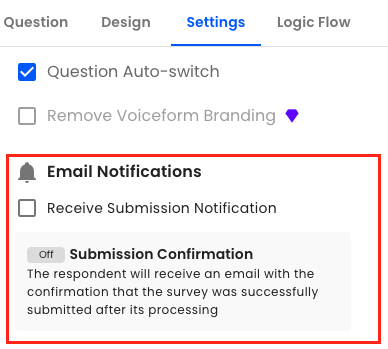
- Receive Submission Notification — email team members when a response is submitted and processed.
- Submission Confirmation — email the respondent a confirmation (requires an email question, or an
emailquery parameter on the share link).
For customization and test emails, see Email Notifications.
Audio Recording Settings
Configure capture options such as:
- File Format (MP3 / WAV)
- Show Text Field On Mic Error
- Silence Detector
- Noise Suppression, Echo Cancellation, Automatic Gain Control
- Include microphone metadata
Related account settings
Account-level notification preferences (email me about new/locked responses) live under your avatar → Account → Notification settings. Per-survey submission emails are controlled here in the form Settings tab.
Updated 2 months ago